
Presentation software plays an important role in many environments such as churches, events, classrooms, conferences, and live productions. One of the most popular tools used for creating and displaying professional presentations is ProPresenter.
ProPresenter is widely used because it allows users to display lyrics, slides, videos, and live presentations in a smooth and professional way. The software is especially popular among churches and media teams that need powerful presentation tools.
If you are using a Mac computer and want to start using ProPresenter, this guide will help you understand how to download and install ProPresenter for Mac OS step by step.
In this article, we will explain everything in simple words so beginners can easily follow the process.
What is ProPresenter?
ProPresenter is professional presentation software developed by Renewed Vision. It is designed for live presentations, media displays, and large-screen content.
Unlike traditional presentation tools, ProPresenter provides advanced features that help users manage presentations in real time.
Some common uses of ProPresenter include:
-
Church worship presentations
-
Event presentations
-
Conference displays
-
Lyrics display for songs
-
Video playback during presentations
-
Live streaming media support
Because of these powerful features, ProPresenter has become one of the most trusted presentation tools worldwide.
Features of ProPresenter for Mac
Before installing the software, it is useful to understand some important features that ProPresenter offers.
Easy Slide Management
ProPresenter allows users to create and manage slides easily. You can organize presentations, add text, images, and videos, and display them instantly.
Media Integration
The software supports multiple media formats including:
-
Images
-
Videos
-
Audio files
-
Background graphics
This makes presentations more engaging and professional.
Live Editing
One of the biggest advantages of ProPresenter is the ability to edit slides while the presentation is running. This is very useful during live events.
Multi-Screen Support
ProPresenter can display different content on multiple screens. For example, the audience can see the presentation while the presenter sees control options.
Streaming and Recording
The software also supports live streaming and recording features, making it ideal for churches and event broadcasts.
System Requirements for ProPresenter on Mac
Before downloading the software, make sure your Mac meets the minimum system requirements.
Typical system requirements include:
-
macOS 11 or later
-
At least 8 GB RAM
-
Modern Apple processor or Intel processor
-
2 GB free storage space
-
Stable internet connection for download
For better performance, many users prefer using Macs with higher RAM and stronger processors.
How to Download ProPresenter for Mac
Downloading ProPresenter is simple and can be done directly from the official website.
Follow these steps carefully.
Step 1: Visit the Official Website
Open your web browser and go to the Renewed Vision official website.
Look for the ProPresenter section on the homepage.
Step 2: Select the Mac Version
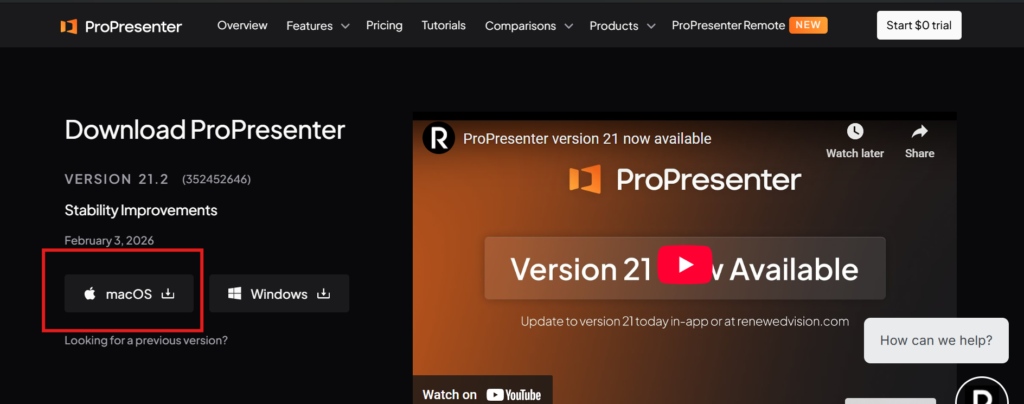
Once you are on the ProPresenter page, you will see download options Mac OS and windows systems.
Choose the Mac version to download the installer file.
Step 3: Start the Download
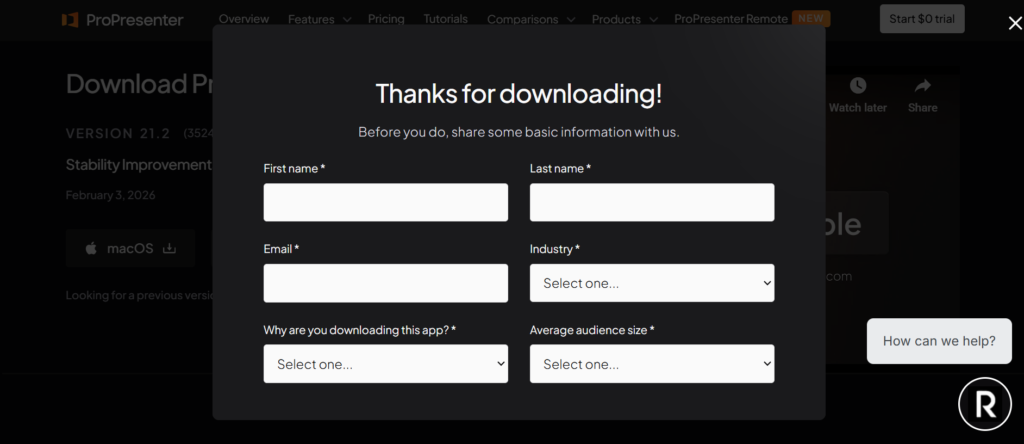
Click the Download button and submit few details as given in the image below to download
The file is usually saved in the Downloads folder.
The download time may vary depending on your internet speed.
How to Install ProPresenter on Mac
After downloading the installer file, the next step is installation.
Follow this simple step-by-step process.
Step 1: Open the Downloaded File
Go to your Downloads folder and find the ProPresenter installation file.
Double-click the file to start the installation process.
Step 2: Drag the App to Applications
A window will appear showing the ProPresenter icon.
Drag the icon into the Applications folder.
This is the standard way to install applications on Mac.
Step 3: Launch the Application
After copying the file to the Applications folder, open Finder and go to Applications.
Find ProPresenter in the list and click to open it.
Step 4: Allow Security Permissions
The first time you open the software, Mac may ask for security confirmation.
Click Open to allow the application to run.
Now the software will launch on your Mac.
Initial Setup of ProPresenter
After opening ProPresenter for the first time, you may need to complete a basic setup.
This usually includes:
-
Accepting the license agreement
-
Setting up display preferences
-
Choosing media folders
-
Connecting output screens if needed
Once these steps are completed, the software will be ready to use.
Creating Your First Presentation
After installing the software, you can start creating presentations immediately.
Follow these basic steps.
Create a New Presentation
Open ProPresenter and click New Presentation.
Add a name and create your first project.
Add Slides
You can now add slides to your presentation.
Slides can include:
-
Text
-
Song lyrics
-
Images
-
Videos
Add Media
ProPresenter allows you to import media files directly into your presentation.
Simply drag and drop files into the media library.
Preview the Presentation
Before showing the presentation to the audience, you can preview it using the built-in preview screen.
This helps ensure everything works correctly.
Tips for Better Performance
To ensure smooth performance while using ProPresenter on Mac, consider these tips.
Keep Software Updated
Always use the latest version of ProPresenter to avoid bugs and compatibility issues.
Use Optimized Media Files
Large video files can slow down presentations. Try to use optimized media formats.
Close Unnecessary Applications
Running too many applications at the same time may reduce performance.
Closing unused apps helps ProPresenter run smoothly.
Common Installation Issues and Solutions
Sometimes users may face issues during installation. Here are a few common problems and solutions.
Installation File Not Opening
If the installer does not open, try downloading the file again.
Sometimes incomplete downloads cause this problem.
Mac Security Warning
Mac may block apps downloaded from the internet.
To fix this:
Go to System Settings → Privacy & Security → Allow App.
Application Not Launching
Restart your Mac and try opening the application again.
This usually resolves most launch problems.
Techztalk Team Recommendation
At Techztalk, our team regularly explores different software tools used for productivity, presentations, and digital workflows. After reviewing many presentation platforms, ProPresenter stands out as a reliable option for professional presentation environments.
For users who frequently manage presentations in churches, conferences, or live events, ProPresenter offers powerful features that make content management much easier.
Why Many Professionals Choose ProPresenter
ProPresenter continues to be a popular choice because it provides a balance between powerful features and easy usability.
Some key reasons why professionals prefer this software include:
-
Advanced presentation controls
-
Reliable performance during live events
-
Strong media support
-
Easy slide management
-
Professional presentation output
These advantages make ProPresenter suitable for both beginners and experienced users.
Conclusion
ProPresenter is a powerful presentation tool designed for professional environments such as churches, conferences, and live productions. With its advanced features and flexible presentation controls, it has become one of the most trusted presentation software options available today.
Downloading and installing ProPresenter on Mac is a simple process. By following the steps explained in this guide, you can easily set up the software and start creating professional presentations.
Once installed, ProPresenter allows you to manage slides, media, and live presentations efficiently. Whether you are preparing a worship presentation or organizing a conference event, the software provides the tools needed to deliver high-quality presentations.
With the right setup and practice, ProPresenter can help you create engaging and professional presentations that leave a strong impact on your audience.
Leave A Comment